HowToImg
Explore all tools ↗

Social video

0/10000
Fixed quote · per video152 creditsAspect ratio: Automatic · Resolution: 720p · Duration: 5 seconds · Generate audio: On

This preset uses the fixed credit quote shown. Auto is also quoted in advance. Prompt complexity and token usage do not add a charge after confirmation.

Reviewing uploads your reference privately. Generation starts only after you confirm the credits.

Product film

Text-to-video example. Add your own image when using image-to-video.

01 / HOWTOIMG

Social video

Draft a short social video concept with a clear opening, scene action and camera direction. Review the text-to-video brief in HowToImg.

How to use an AI image generator in four steps.

  1. 01

    Choose image or video

    Open the AI image generator workspace. Choose Image or Video, then From text or From image. A dedicated tool route provides a starting point for a product shot, portrait or animation in the same editor.

  2. 02

    Describe the scene

    Give the AI image generator a subject, setting and lighting direction. For video, add one action and camera movement. Select a PNG, JPEG or WebP reference up to 10 MB, inspect its local preview or remove it.

  3. 03

    Fine-tune the format

    Choose a model and review supported controls. An AI image generator brief for a tall post needs different framing from a wide banner. Check compatible options after switching models, then revise the description for your workflow.

  4. 04

    Keep a draft for your next creation

    Keep a browser draft when storage is available. Re-select reference files after refreshing. Review your AI image generator settings and credit quote before explicitly confirming a task. Labelled examples are inspiration, not results of your draft.

02 / The possibilities

Built around what you want to make.

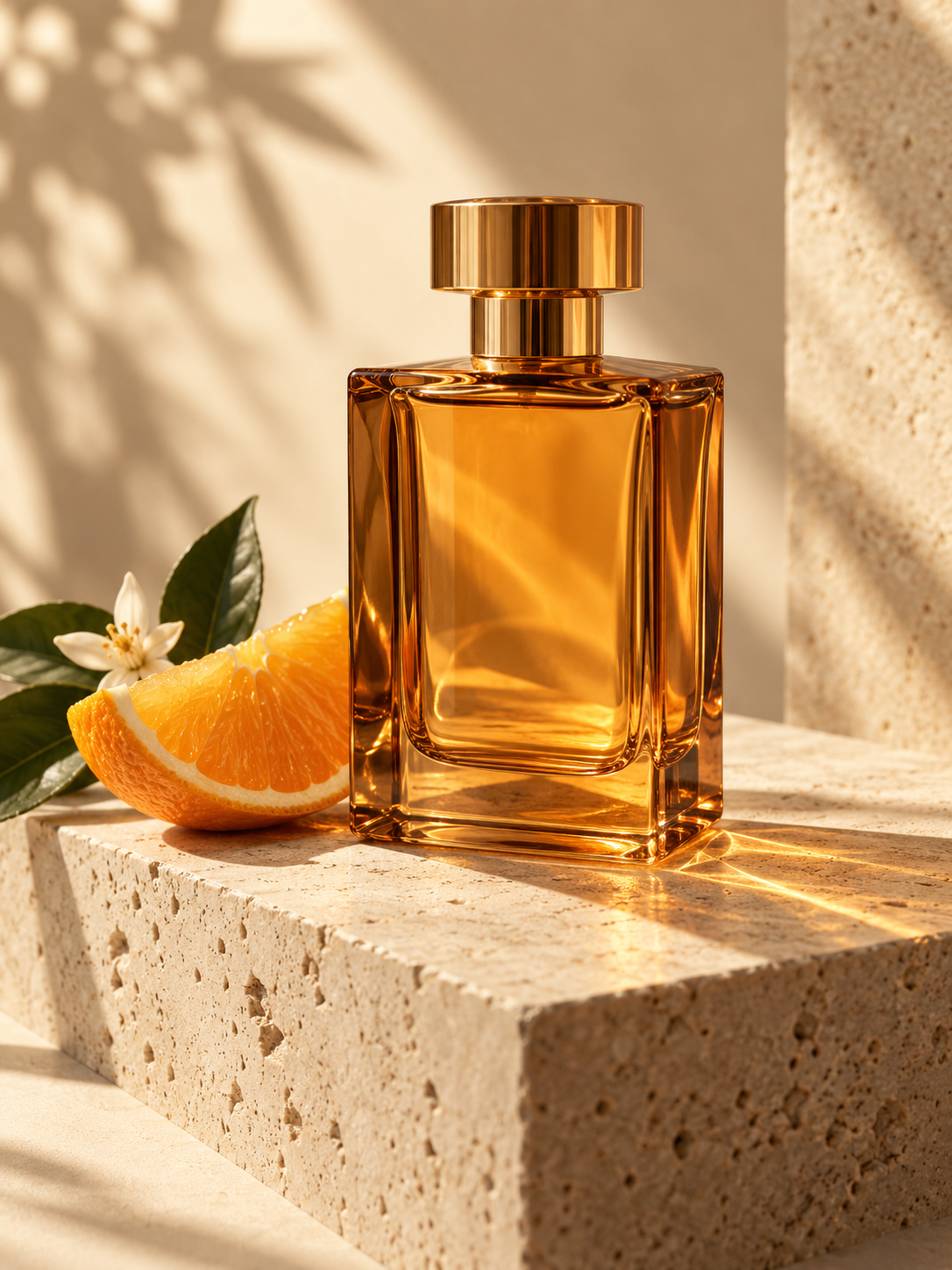
Original example: studio product photography
EXAMPLE · NOT YOUR GENERATED RESULT
01

Start with a sentence

Start your AI image generator brief with one subject and a visual goal. Describe material, colour and light before decorative details. An example prompt can help, but your product and destination should guide the scene. A focused AI image generator request is easier to revise than competing ideas.

02

Bring your own starting point

A reference gives an AI image generator context for shape, colour or composition. Choose an image you may use, inspect its local preview and check the starting point. Remove it when your direction changes. The AI image generator workspace supports text-only preparation when a reference adds little.

03

See the right controls

The AI image generator controls follow your model and workflow. Review resolution, aspect ratio or other supported options; not every model and mode offers the same choices. An AI image generator brief for a portrait needs different framing from a banner. Choose early so your subject has room.

04

Give stills a sense of motion

Prepare a still scene in the AI image generator workspace; for video, describe an action and ending. Focus on one movement and camera direction rather than competing events. Switch from the AI image generator workspace to image-to-video to prepare motion around a reference in the familiar editor.

05

Make room for real work

Choose the AI image generator tool route for your task: product photography, portraits or logo concepts. Related video routes cover animation and social clips. Each shares the workspace shell. Your AI image generator brief can focus on audience, format and scene instead of learning another set of controls.

06

Pick up where you left off

Your AI image generator prompt is saved per tool in this browser when storage is available. Refresh or refine the text as your idea develops. Drafts do not synchronise between devices. Keep a separate copy of an important AI image generator brief; select references again after refreshing.

HowToImg Pricing and Credit Plans

Subscriptions and one-time credits for AI image and video creation.

Cancel future renewals anytime

Lite

Save about 50%

$0.025 /credit

$29.90$14.92/month

$179.00 billed yearly · Save $179.80/year

600 credits/month

  • Image and video model access
  • The same model and settings use the same credits across plans.
  • Pay yearly. Credits arrive monthly and expire at each monthly window end. Unused credits do not roll over.

Pro

Save about 50%

$0.014 /credit

$99.90$49.92/month

$599.00 billed yearly · Save $599.80/year

3,600 credits/month

  • Image and video model access
  • The same model and settings use the same credits across plans.
  • Pay yearly. Credits arrive monthly and expire at each monthly window end. Unused credits do not roll over.

Max 1×

Save about 50%

$0.012 /credit

$199.90$99.92/month

$1,199.00 billed yearly · Save $1,199.80/year

8,000 credits/month

  • Image and video model access
  • The same model and settings use the same credits across plans.
  • Pay yearly. Credits arrive monthly and expire at each monthly window end. Unused credits do not roll over.
Checking payment availability…

Payment and confirmation

Review the selected offer, final total and available payment methods in the current checkout before confirming.

Models and generation credits

Identical settings use identical credits on every plan. Ordinary image rates round up with a 4-credit minimum per output; batches multiply the per-image quote. Layer separation reserves credits and returns the unused amount after success.

Prices checked 17–18 Oct 2026

Video models

  • Seedance 2.0View quote in workspace ↗
    Fixed quote · per video152 creditsAspect ratio: Automatic · Resolution: 720p · Duration: 5 seconds · Generate audio: On
    Parameters and credits

    Limits: Reference images (max): 1; Outputs (max): 1.

    Other exposed settings do not add a surcharge.

  • Kling 3.0View quote in workspace ↗
    Fixed quote · per video63 creditsDuration: 5 seconds · Generate audio: On · Variant: Standard · Aspect ratio: 16:9
    Parameters and credits

    Limits: Reference images (max): 1; Outputs (max): 1.

    Other exposed settings do not add a surcharge.

  • Grok Imagine VideoView quote in workspace ↗
    Fixed quote · per video42 creditsAspect ratio: 16:9 · Resolution: 720p · Duration: 6 seconds
    Parameters and credits

    Limits: Reference images (max): 1; Outputs (max): 1.

    Other exposed settings do not add a surcharge.

  • HappyHorse 1.1View quote in workspace ↗
    Fixed quote · per video90 creditsResolution: 1080p · Duration: 5 seconds · Seed (-1: random): -1 · Aspect ratio: 16:9
    Parameters and credits

    Limits: Reference images (max): 1; Outputs (max): 1.

    Other exposed settings do not add a surcharge.

Image models

  • GPT Image 2View quote in workspace ↗
    Fixed quote22 creditsResolution: 1K · Background: Automatic · Image size: Square HD · Quality: High · File format: PNG · Output images: 1
    Parameters and credits

    Limits: Reference images (max): 16; Outputs (max): 4.

    Other exposed settings do not add a surcharge.

  • GPT Image 2.5 FlareView quote in workspace ↗
    Fixed quote4 creditsResolution: 1K · Background: Automatic · Image size: Landscape 4:3 · Quality: High · File format: PNG · Output images: 1
    Parameters and credits

    Limits: Reference images (max): 16; Outputs (max): 10.

    Other exposed settings do not add a surcharge.

  • GPT Image 2.5 SunburstView quote in workspace ↗
    Fixed quote4 creditsResolution: 1K · Background: Automatic · Image size: Landscape 4:3 · Quality: High · File format: PNG · Output images: 1
    Parameters and credits

    Limits: Reference images (max): 16; Outputs (max): 10.

    Other exposed settings do not add a surcharge.

  • Nano Banana 2 LiteView quote in workspace ↗
    Fixed quote5 creditsAspect ratio: Automatic · File format: PNG · Output images: 1
    Parameters and credits

    Limits: Reference images (max): 16; Outputs (max): 4.

    Other exposed settings do not add a surcharge.

  • Nano Banana 2View quote in workspace ↗
    Fixed quote8 creditsAspect ratio: Automatic · Resolution: 1K · File format: PNG · Output images: 1
    Parameters and credits

    Limits: Reference images (max): 14; Outputs (max): 4.

    Other exposed settings do not add a surcharge.

  • Nano Banana ProView quote in workspace ↗
    Fixed quote15 creditsAspect ratio: 1:1 · Resolution: 1K · File format: PNG · Output images: 1
    Parameters and credits

    Limits: Reference images (max): 14; Outputs (max): 4.

    Other exposed settings do not add a surcharge.

  • Seedream V5View quote in workspace ↗
    Fixed quote14 creditsImage size: Automatic (2K) · File format: JPEG · Output images: 1
    Parameters and credits

    Limits: Reference images (max): 10; Outputs (max): 6.

    Other exposed settings do not add a surcharge.

  • Seedream Pro LayerizeView quote in workspace ↗
    Reserved credits119 creditsImage size: Automatic · Prompt optimization: Standard · Reference images: 1

    Reserve up to 17 layers. On success, all returned layers including the background are charged at 4 credits/layer up to 1536² pixels, or 7 above it. Unused reservation returns to its original credit lots without extending expiry.

    Parameters and credits

    Limits: Reference images (max): 1; Outputs (max): 17.

    Other exposed settings do not add a surcharge.

  • Grok Imagine ImageView quote in workspace ↗
    Fixed quote4 creditsAspect ratio: 1:1 · Resolution: 1K · File format: JPEG · Output images: 1
    Parameters and credits

    Limits: Reference images (max): 3; Outputs (max): 4.

    Other exposed settings do not add a surcharge.

Credits, cancellation and refunds

Pay yearly. Credits arrive monthly and expire at each monthly window end. Unused credits do not roll over.

Subscription credits expire at each paid monthly window end. Cancellation stops the next renewal; paid access continues to period end.

One-time credits are valid for 12 calendar months. A pack does not start a subscription.

Cancellation stops future renewals. Refunds are reviewed separately. Approved purchase reversals reduce only that purchase’s entitlements proportionally; used or reserved credits require review. Other purchases are unaffected.

HOWTOIMG / 13 tools

Built around what you want to make.

A few things to know.

Can I use the AI image generator right now?+

You can explore the AI image generator workspace and prepare a brief without submitting a task. Choose a supported model, mode and settings, then sign in to review the actual credit quote. Confirm generation only after checking the request and your available credits. Editing a draft does not reserve credits, run inference or charge a payment method. Availability depends on your account and the current service status; any failed or unavailable step is shown before you can proceed. Labelled AI image generator examples remain separate from your own task results.

Are AI image generator examples my results?+

No. The AI image generator examples are supplied for inspiration and clearly labelled. They are not connected to your prompt, selected model or account. Switching an example lets you inspect another visual direction; it does not run inference. Treat an AI image generator example as a reference for the kind of composition you might describe, rather than evidence that your own request has succeeded. Your draft and a future generated result are separate things.

What does HowToImg support?+

The AI image generator workspace supports drafting for text to image and image editing, alongside text-to-video and image-to-video workflows. Routes cover product imagery, portraits, logo concepts, photo animation and social video. They share one editor and show controls for the selected model and mode. The AI image generator tool pages do not imply that a paid service is enabled: actual submission also requires configured service access, approved pricing and an eligible account. Review the current quote and account eligibility before confirming the request.

Where is my uploaded image stored?+

Selecting a reference in the AI image generator first displays a local browser preview. When reviewing credits for a supported task, references are uploaded privately. Unused uploads become eligible for cleanup after 24 hours; attached references follow task retention. Review the quote and confirm generation separately. Remove unwanted references before continuing, and select local files again after refreshing because they are not restored with the text draft.

Is my AI image generator prompt saved?+

Your written AI image generator prompt is stored locally per tool when browser storage is available. Refreshing can restore that text, helping you continue without retyping. It is a browser draft, not an account-synchronised project, so another device may contain different text. Reference files are not restored with the prompt. Keep an independent copy of an important AI image generator brief, particularly before clearing browser data. On shared devices, clear personal text before finishing.

Why do size options change?+

Each model and workflow exposes its own supported creation controls. The AI image generator workspace selects compatible options when you switch models, so review values before continuing. Think about where your focal point should sit in the chosen image frame; for video, check available motion-related options as well. An AI image generator brief helps communicate your intention, but the controls do not guarantee a particular finished result. Unsupported combinations are not retained when models change.

Do I need to sign in?+

You can explore the public AI image generator workspace and prepare a browser draft without an account. Sign in with an available method to review and submit a task using your own eligible account. Drafting does not reserve credits or create a task. Before confirming, check which account is active and the balance shown for that account. Browser drafts are stored locally and remain separate from account task history; do not assume that drafts, old orders or saved assets are automatically synchronized across devices.

How much does generation cost?+

The same model and settings use the same credits across plans. Annual plans are paid yearly, with credits issued monthly and expiring at each monthly window end without rollover. One-time packs are valid for 12 calendar months and do not start a subscription. Review the current quote, selected offer and final Checkout total before confirming. Payment availability is shown by the live checkout status.

Can I use these images commercially?+

Commercial rights for an AI image generator result depend on the chosen model, your input and the applicable service terms. Models do not all have identical conditions. There is no blanket commercial-use guarantee, and labelled artwork is not a licensed result of your draft. Review model terms and confirm your reference rights before commercial use. A concept brief does not itself establish permission for a finished asset.

Does it work on mobile?+

Yes. The AI image generator editor and example stack vertically on smaller screens while drafting controls stay available. Select a model, review compatible choices and keep your description focused enough to edit on a phone. Tool routes work on mobile, and switching languages keeps the current tool. Your AI image generator draft is stored locally in that mobile browser; it does not automatically match the text on your computer. Choose reference files again after refreshing.
HOWTOIMG

Give your AI image generator brief a clear starting point.

Open the workspace ↗